> ## Documentation Index
> Fetch the complete documentation index at: https://allhandsai-fix-security-analyzer-examples.mintlify.site/llms.txt
> Use this file to discover all available pages before exploring further.
# CLI
> The Command-Line Interface (CLI) provides a powerful interface that lets you engage with OpenHands directly from your terminal.
## Overview
This mode is different from the [headless mode](/openhands/usage/run-openhands/headless-mode), which is non-interactive
and better for scripting.
If you're upgrading from a CLI version before release 1.0.0, you'll need to redo your settings setup as the
configuration format has changed.
## Getting Started
Requires Python 3.12+ and uv installed.
**Install OpenHands:**
```bash theme={null}
uv tool install openhands
```
**Run OpenHands:**
```bash theme={null}
openhands
```
**Upgrade OpenHands:**
```bash theme={null}
uv tool upgrade openhands
```
1. Download the executable binary from
[OpenHands release page](https://github.com/OpenHands/OpenHands/releases/tag/1.0.1-cli) and rename it to
`openhands` for simplicity.
2. Make it executable:
```bash theme={null}
chmod +x ./openhands
```
3. Run the executable:
```bash theme={null}
./openhands
```
Your system may require you to allow permissions to run the executable.
We are working on a fix for this issue.
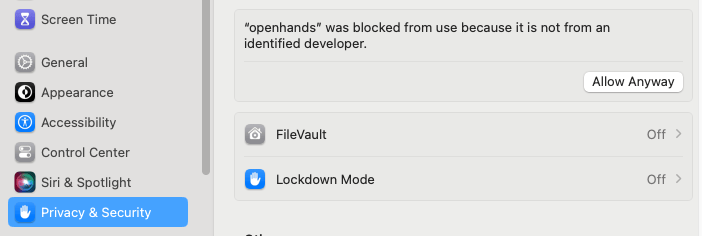
When running the OpenHands CLI on Mac, you will get a warning that says "openhands can't be opened because Apple
cannot check it for malicious software."
1. Open `System Settings`.
2. Go to `Privacy & Security`.
3. Scroll down to `Security` and click `Allow Anyway`.
4. Rerun the OpenHands CLI.
1. Set the following environment variable in your terminal:
* `SANDBOX_VOLUMES` to specify the directory you want OpenHands to access ([See using SANDBOX\_VOLUMES for more info](/openhands/usage/runtimes/docker#using-sandbox_volumes))
2. Ensure you have configured your settings before starting:
* Set up `~/.openhands/settings.json` with your LLM configuration
3. Run the following command:
```bash theme={null}
docker run -it \
--pull=always \
-e SANDBOX_RUNTIME_CONTAINER_IMAGE=docker.openhands.dev/openhands/runtime:0.62-nikolaik \
-e SANDBOX_USER_ID=$(id -u) \
-e SANDBOX_VOLUMES=$SANDBOX_VOLUMES \
-v /var/run/docker.sock:/var/run/docker.sock \
-v ~/.openhands:/root/.openhands \
--add-host host.docker.internal:host-gateway \
--name openhands-cli-$(date +%Y%m%d%H%M%S) \
python:3.12-slim \
bash -c "pip install uv && uv tool install openhands && openhands"
```
The `-e SANDBOX_USER_ID=$(id -u)` is passed to the Docker command to ensure the sandbox user matches the host user’s
permissions. This prevents the agent from creating root-owned files in the mounted workspace.
The first time you run the CLI, it will take you through configuring the required LLM settings. These will be saved
for future sessions.
The conversation history will be saved in `~/.openhands/conversations`.
## Interactive CLI Overview
### What is CLI Mode?
CLI mode enables real-time interaction with OpenHands through the terminal. You can type natural language tasks,
use interactive commands, and receive instant feedback—all inside your terminal.
### CLI Commands and Settings
The OpenHands CLI provides various commands for managing settings, conversations, and configurations. For detailed information about available commands, configuration options, and troubleshooting, see the [CLI Settings](/openhands/usage/run-openhands/cli-settings) page.
Key features include:
* Interactive settings configuration with `/settings`
* MCP server management with `/mcp`
* Conversation management with `/new` and `/help`
* Real-time status monitoring and control